
How to Create an APA Table of Contents in Microsoft Word
Create an APA table of contents in Microsoft Word using heading styles, automatic page numbers, dot leaders, and an editable APA 7 template.
An APA table of contents is not normally required for a standard student paper. APA 7 does not prescribe a universal table-of-contents format, so you should include one only when your instructor, university, or publication requires it. Tables of contents are most common in theses, dissertations, capstone projects, and long reports.
When a table of contents is required but no template is supplied, use the same font, margins, spacing, and heading hierarchy as the rest of the paper. List the document’s major sections, indent subordinate headings consistently, and place the corresponding APA page numbers at the right margin. Microsoft Word can generate and update these elements automatically.
Does APA 7 require a table of contents?
APA 7 does not require a table of contents for an ordinary journal article or student paper. The standard paper elements described by APA do not include one. For a short course paper, clear APA headings usually provide enough organization without an additional contents page.
A table of contents may still be required by an instructor or institution. Long papers benefit from one because readers can locate chapters, major sections, references, and appendices quickly. The assignment instructions take priority over any general online template.
| Document type | Is a table of contents normally needed? |
|---|---|
| Short student essay | No, unless requested |
| Standard research paper | Usually not |
| Long capstone report | Often useful or required |
| Thesis or dissertation | Commonly required by the institution |
| Multi-chapter manuscript | Usually useful |
| Journal submission | Follow the journal’s instructions |
Where does an APA table of contents go?
In a thesis or long student paper, the table of contents commonly appears after the abstract and before the main text. However, a university may place acknowledgments, a list of tables, or a list of figures before or after it. Follow the required front-matter order rather than assuming there is one universal APA sequence.
Start the table of contents on a new page. If no institutional format is provided, center and bold the title Table of Contents at the top. Use the same approved font and 1-inch margins applied throughout the paper.
Standard student papers use consecutive Arabic page numbers beginning with the title page. Some thesis templates instead assign lowercase Roman numerals to front matter and begin Arabic numbering with the first chapter. That difference is institutional formatting, not the standard student-paper APA format.
What should an APA table of contents include?
A practical table of contents includes the paper’s major sections and enough subsections to help readers navigate. Level 1 headings should normally appear, and Level 2 headings are often useful in longer documents. Include Level 3 only when readers genuinely need that detail.
A contents page may include:
Abstract
Major chapters or Level 1 sections
Important Level 2 subsections
References
Appendices
List of tables or figures when required
The title page and table of contents itself are commonly omitted from the entries, but institutional rules vary. Keep the wording and capitalization identical to the headings in the paper. Do not shorten a heading in the contents list unless the required template permits shortened entries.
APA Table of Contents template
The following APA Table of Contents template demonstrates a common two-level structure. The page numbers are illustrative and should be generated from the actual document. Indentation represents the relationship between main sections and subsections.
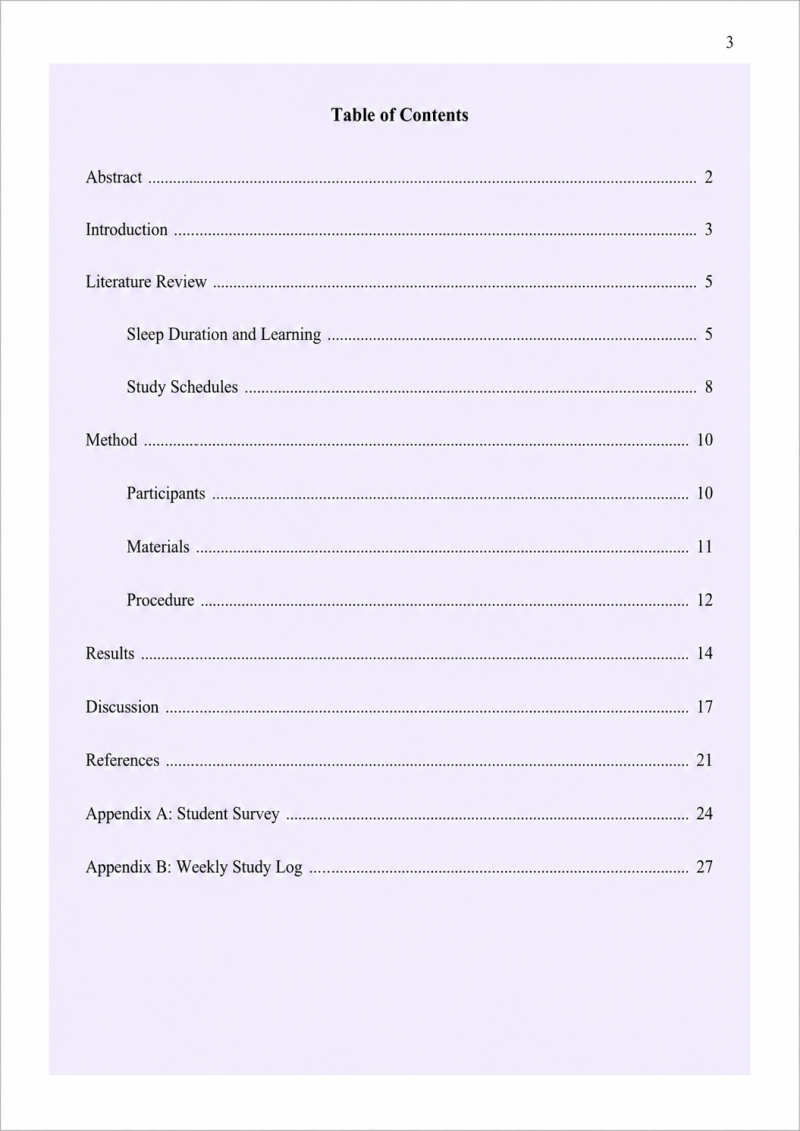
Dot leaders are the rows of dots connecting entries to their page numbers. They improve scanning but are not an independently mandated APA element. Use them when the instructor, template, or document design calls for them.
How to create an APA Table of Contents in Word
Microsoft Word builds an automatic table from its heading styles. Simply making a heading bold or centered does not tell Word that it belongs in the document hierarchy. You must apply Heading 1, Heading 2, or another recognized style before inserting the table.
Step 1: Apply Word heading styles
Select each major section heading, open the Home tab, and apply Heading 1 from the Styles gallery. Apply Heading 2 to subsections and Heading 3 to smaller subdivisions. Use the same level for headings that hold the same position in the paper.
Map the Word styles to the APA hierarchy:
| APA level | Word style | Usual APA appearance |
|---|---|---|
| Level 1 | Heading 1 | Centered, bold, title case |
| Level 2 | Heading 2 | Flush left, bold, title case |
| Level 3 | Heading 3 | Flush left, bold italic, title case |
Word’s default headings may be colored, larger than the body text, or followed by extra spacing. Modify the styles so they match the required APA headings while retaining their structural level. This allows Word to recognize them without changing the paper’s visual format incorrectly.
Step 2: Modify Heading 1, Heading 2, and Heading 3
Right-click Heading 1 in the Styles gallery and choose Modify. Set it to the paper’s font and size, make it bold and centered, and remove additional paragraph spacing. Repeat the process for Heading 2 and Heading 3 using their APA alignment and emphasis.
Keep the paper double-spaced unless another section has a permitted exception. Do not enlarge headings merely because Word’s default style does so. The Microsoft styles guidance explains how modified styles can be applied consistently across a document.
Step 3: Insert a new contents page
Place the cursor where the table of contents should appear. Select Insert, choose Page Break, and type Table of Contents at the top of the new page. Format this title manually rather than applying Heading 1, or Word may include “Table of Contents” as an entry in its own table.
Position the cursor below the title. Keep at least one normal double-spaced line between the title and the first entry. Do not type entries or page numbers manually if the document may still change.
Step 4: Insert the automatic table
Open the References tab, select Table of Contents, and choose Custom Table of Contents. Confirm that page numbers are displayed and right-aligned. Select a dot leader if required and specify how many heading levels Word should show.
Two levels are sufficient for many student papers. Three levels may help readers navigate a thesis with detailed subdivisions. Avoid automatically including Levels 4 and 5 because these are run-in APA headings, and Word may pull accompanying paragraph text into the contents list.
Step 5: Format the table entries
If Word’s table does not match the paper, return to References, Table of Contents, and Custom Table of Contents. Select Modify, then change the TOC 1, TOC 2, and TOC 3 styles. These control how each contents level appears without altering the headings in the body.
Use the paper’s font and a consistent indentation pattern. Keep Level 1 entries flush left, then indent each lower level progressively, often by 0.5 inches. Use the spacing required by the institution; when none is given, maintaining the document’s general double spacing is a defensible choice.
Step 6: Update the table before submission
Click inside the table, select Update Table, or right-click and choose Update Field. Select Update page numbers only when headings have not changed. Select Update entire table after adding, deleting, renaming, or moving sections.
Update the table only after finishing the document and confirming pagination. Then compare several entries with their actual pages. The Microsoft table-of-contents instructions explain the available formatting and update options.
Fixing common APA Table of Contents Word problems
A heading is missing
A missing entry usually means the text was formatted manually instead of receiving a Word heading style. Select the heading, apply the appropriate Heading style, and update the entire table. Confirm that the custom table is set to display that heading level.
Body text appears in the table
This often happens when a Heading style was applied to an entire paragraph. Apply the style only to a separate display heading. Paragraph-style APA Levels 4 and 5 may require manual handling or exclusion from the automatic table.
Page numbers are incorrect
Page numbers become outdated whenever text moves between pages. Update the table after completing all revisions. If the numbers remain incorrect, inspect section breaks and Word’s page-number settings before updating again.
The table uses the wrong font or spacing
Modify the TOC styles rather than reformatting each entry individually. Manual changes may disappear the next time Word rebuilds the table. Set TOC 1, TOC 2, and TOC 3 to the desired font, spacing, and indentation.
Connecting the table to citations and references
A table of contents helps readers navigate the paper, while citations and references document the evidence used within it. The APA Citation Generator can help create source entries for the References section listed in the table. Check every generated entry against the original source before adding it to the paper.
The generator does not create the contents page or decide which headings belong in it. Use Word’s automatic table for navigation and the citation tool for source documentation. Keeping these tasks separate makes both easier to review.
APA table of contents checklist
Before submitting the document, confirm that:
A table of contents is actually required.
Its placement follows the assignment or institutional template.
Entries match the paper’s headings exactly.
Heading levels use consistent indentation.
Page numbers are aligned and accurate.
The font, margins, and spacing match the required format.
References and appendices appear when required.
Word heading styles are applied correctly.
The table has been fully updated.
The title does not appear as an entry in its own table.
An APA table of contents is most reliable when it is built from properly structured headings rather than typed manually. Apply and customize Word heading styles first, insert an automatic table, and update it after the final revision. Where APA 7 does not supply a specific rule, follow the instructor or institution’s template consistently.
Frequently asked questions
No. Standard APA student papers do not require one, but an instructor or university may require it for a long report, thesis, or dissertation.
APA does not prescribe a universal table-of-contents layout. Use the institution’s required spacing; without a separate rule, use the paper’s general double spacing consistently.
Include Level 1 and any lower levels readers need for navigation. Two levels are usually enough, while detailed theses may require three or more.
Yes. An automatic table uses Word’s heading styles and page fields. Update the table after making changes so the displayed page numbers remain accurate.
Keep reading
APA Running Head Made Simple: Format and Examples
Format an APA running head correctly with clear rules for student and professional papers, title pages, font size, and practical examples.
How to Create an APA Table of Contents in Microsoft Word
Create an APA table of contents in Microsoft Word using heading styles, automatic page numbers, dot leaders, and an editable APA 7 template.
APA Block Quotes: 40-Word Rule and Examples
Learn how to format an APA block quote correctly with APA 7th edition rules, templates, spacing, font size, and citation examples for ...